

How to Invite a User to Cloudflare
Document purpose
Section titled “Document purpose”This guide shows you how to invite someone to your Cloudflare account and give them full control of it.
You need your own Cloudflare account, and the email address of the person you want to invite.
Sign in
Section titled “Sign in”- Go to dash.cloudflare.com and sign in.
Invite
Section titled “Invite”-
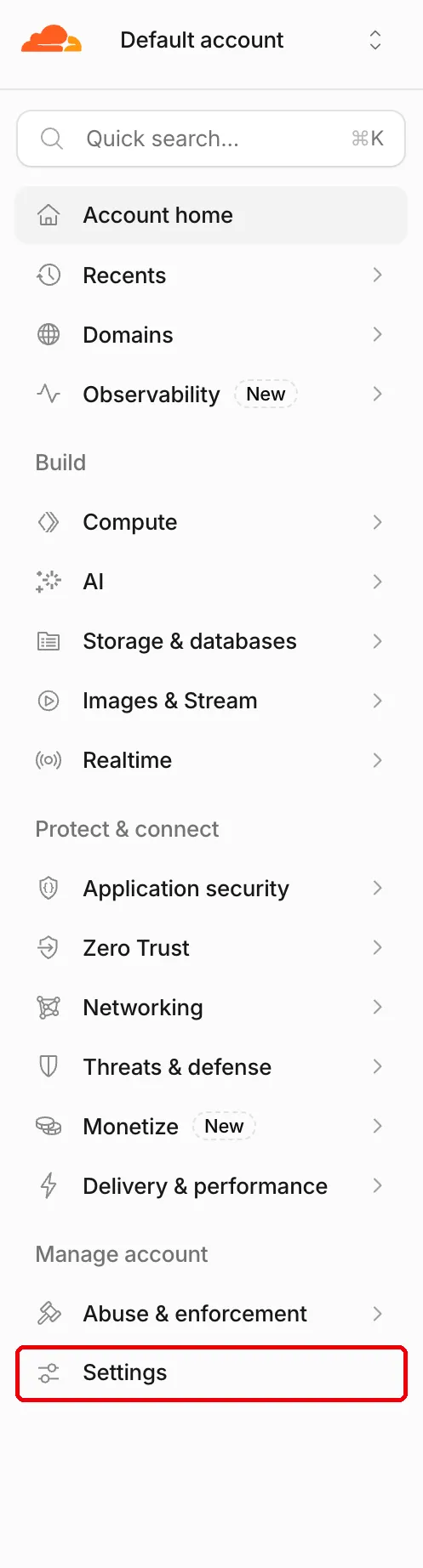
In the left sidebar, under Manage account, click Settings.
-
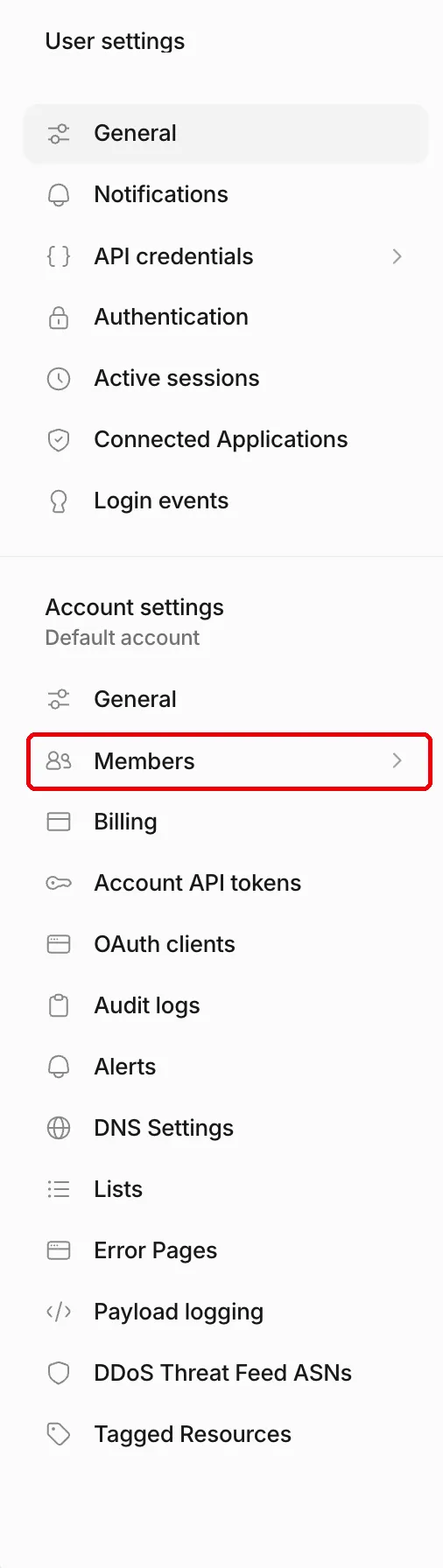
Under Account settings, click Members.
-
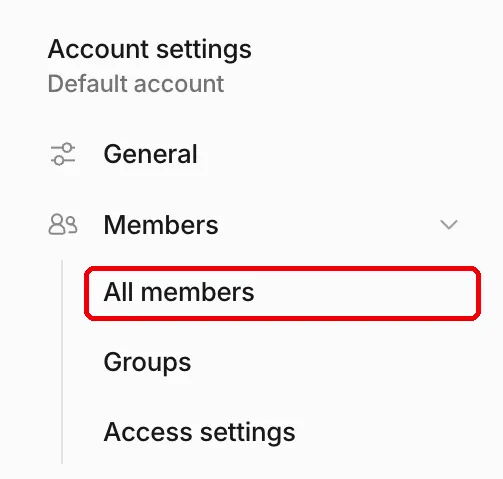
Click All members.
-
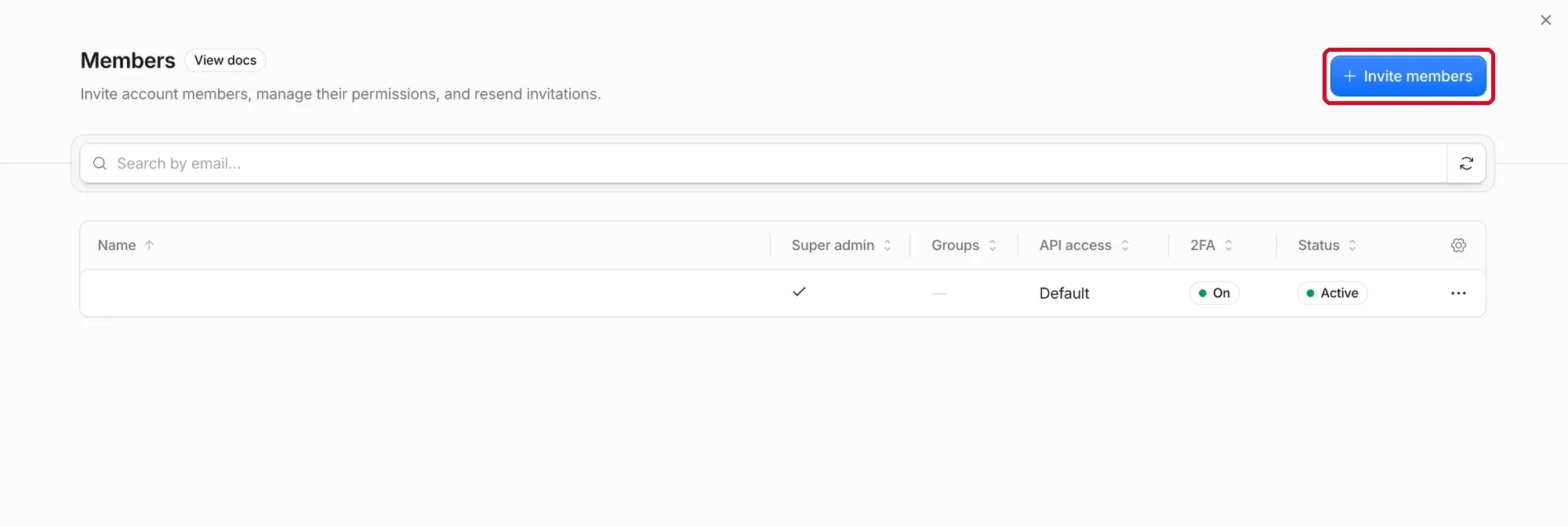
On the Members page, click Invite members in the top right.
-
Under Add email addresses, type the email address of the person you want to invite.
Once the email address is typed out, click the email address in the list that appears below the box.

-
Check the email address now shows in its own small box, with an × next to it.
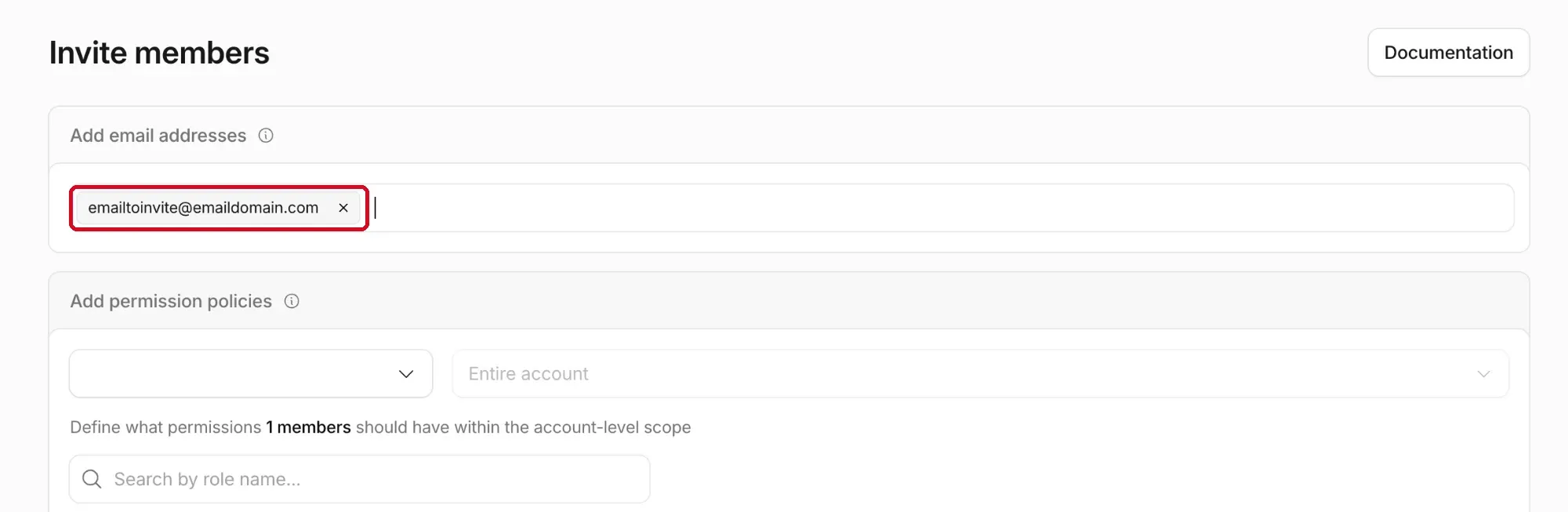
-
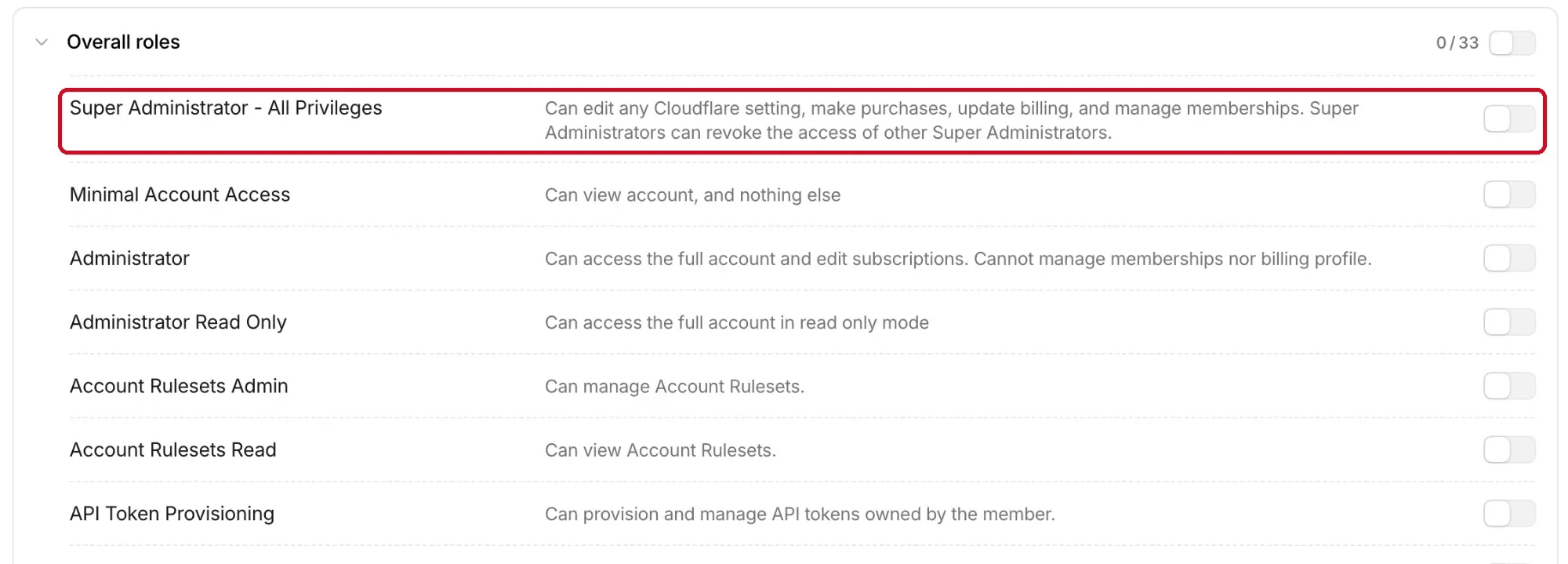
Under Overall roles, turn on Super Administrator - All Privileges.
This gives the person full control of the account, including billing and members. Only give it to someone you trust.
Before: the switch is off.
After: the switch is on, and the count at the top shows 1 / 33.
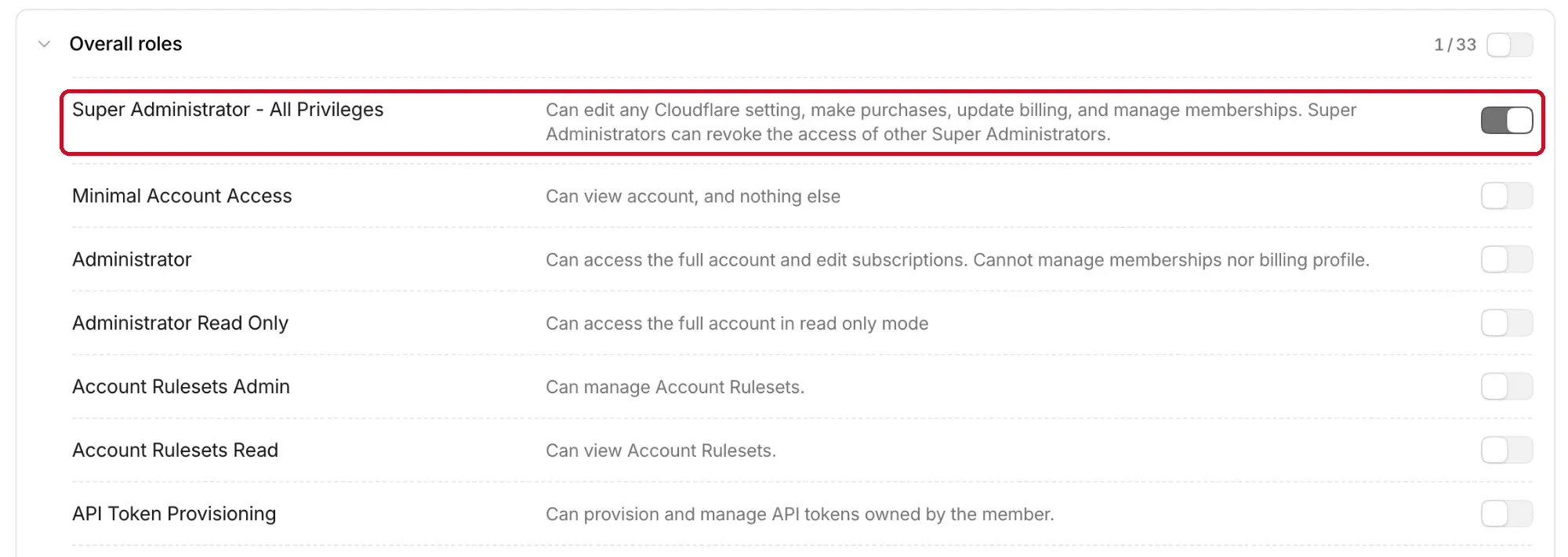
-
Scroll down and click Create policy.
The Invite members button stays pale and can’t be clicked until you do this.
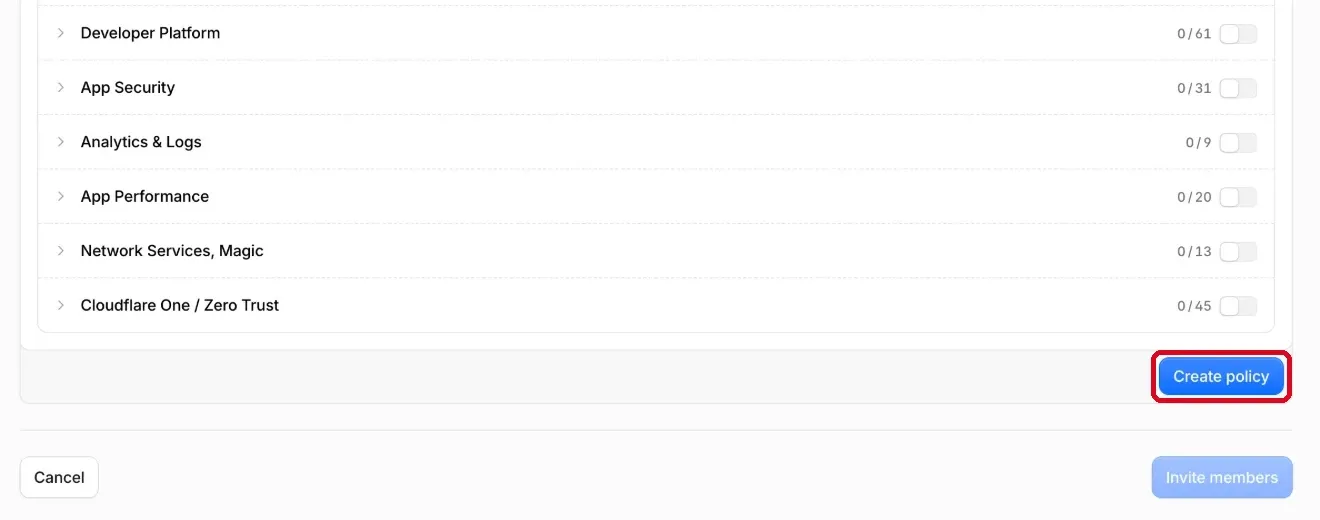
-
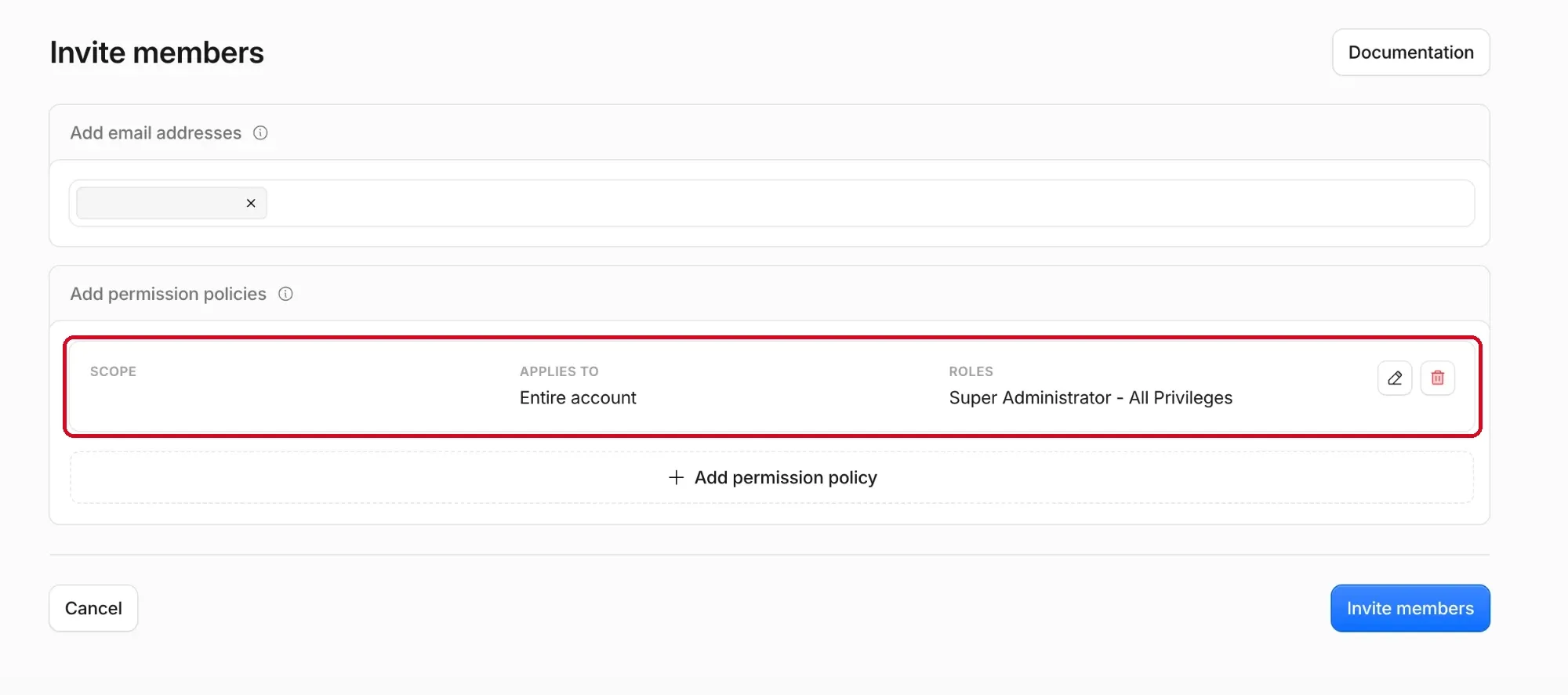
Check the new policy shows Entire account and Super Administrator - All Privileges.
-
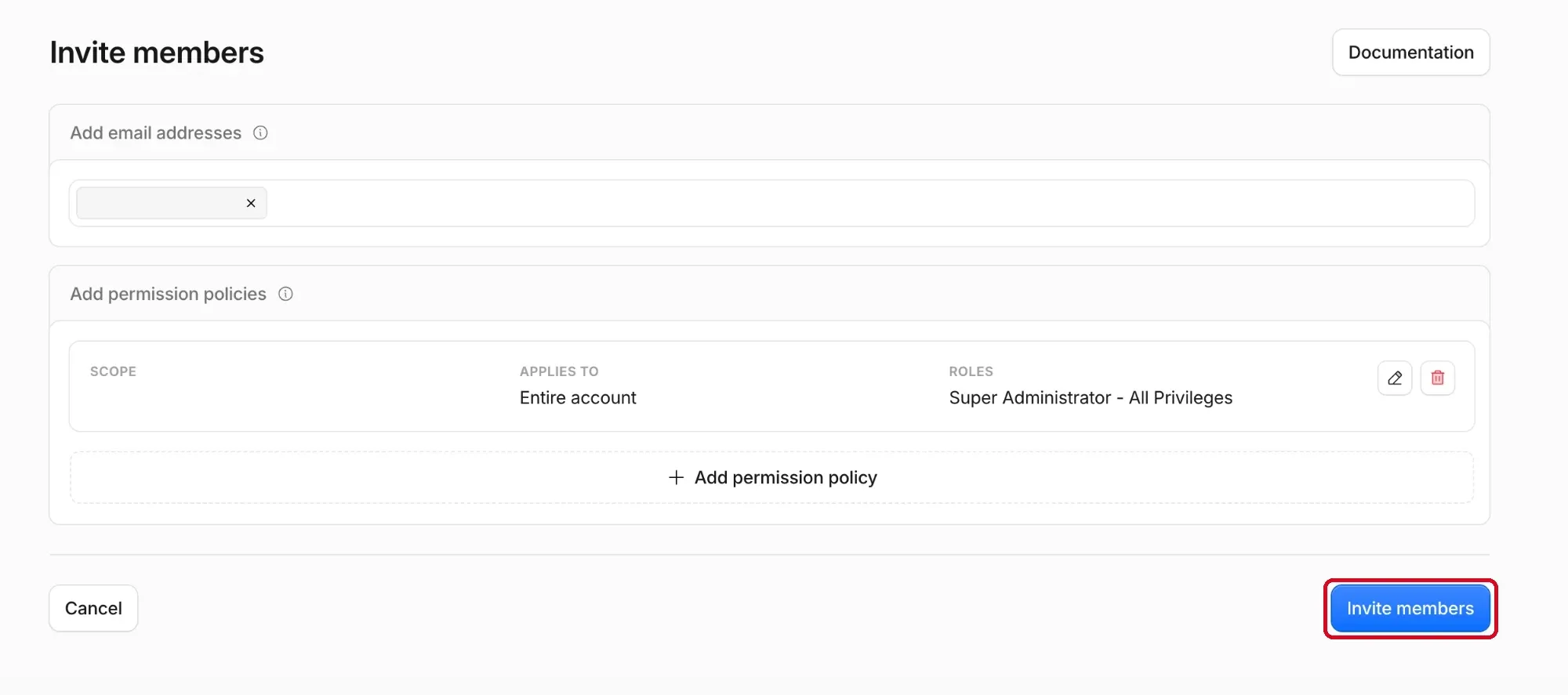
Click Invite members.
-
A message says Successfully invited 1 member.

-
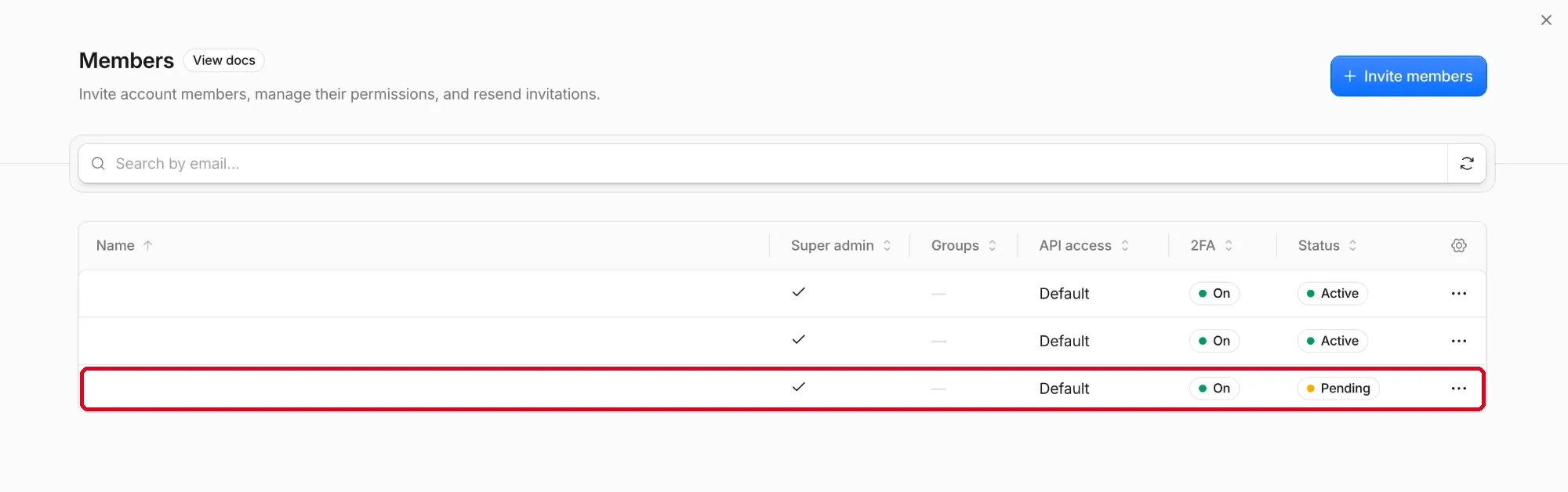
The person shows in the members list as Pending. It changes to Active once they accept the invite from their email.
-
Let the person know you’ve invited them, so they can accept the invite and start managing things for you.
You’re all set!
Your invite is sent. Once the person accepts it, they can manage your Cloudflare account.